AIResumeChanger
Use your AI. We handle the workflow.
Groq: Getting an API Key
Overview
Groq provides developer API access that can be used with AIResumeChanger. Follow the steps below to obtain a key and add it into the Settings page.
Groq keys usually start with gsk_
Create a new API key and copy it before returning to the app.
Steps
Step 1
Step 2
Step 3
Step 4
Step 5
Step 6
Step 7
Screenshots
The screenshots below follow the same order as the steps above. Files are named 1.png, 2.png, and so on.
Step 1: Create or sign in to your Groq developer account at groq.com.
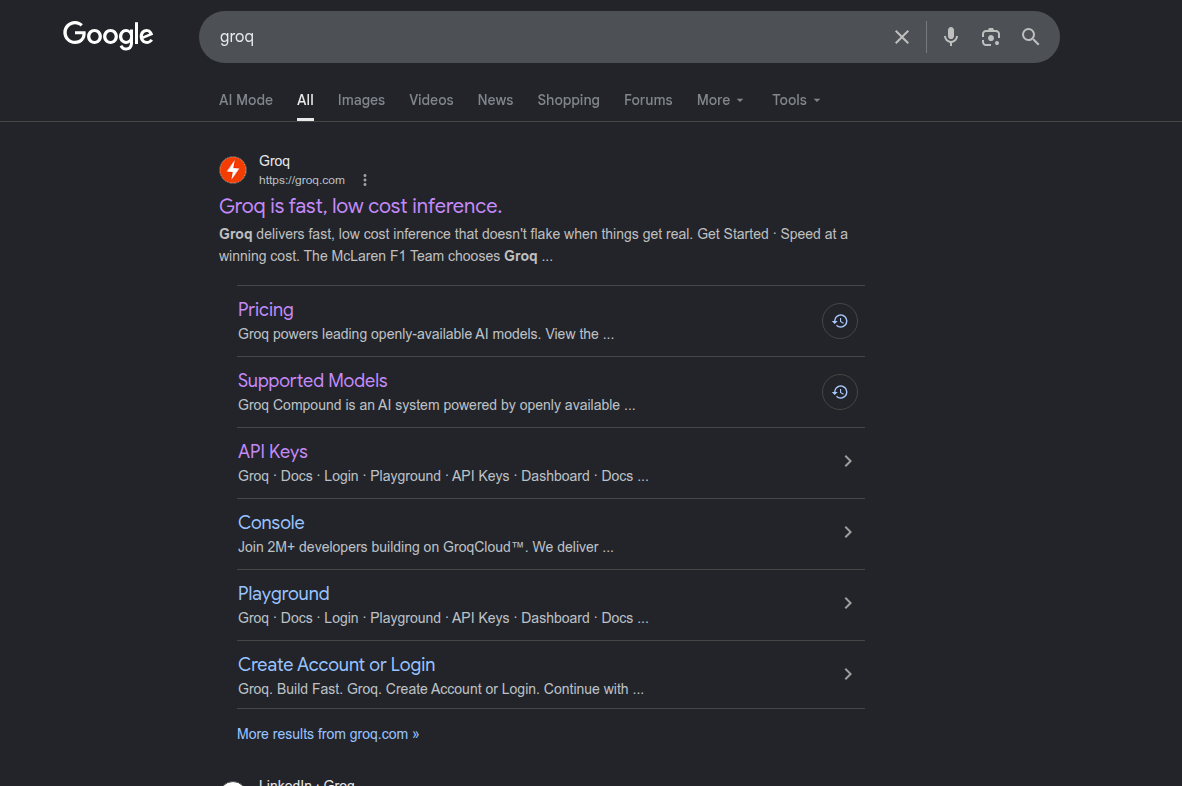
Groq account sign-in and developer entry point.
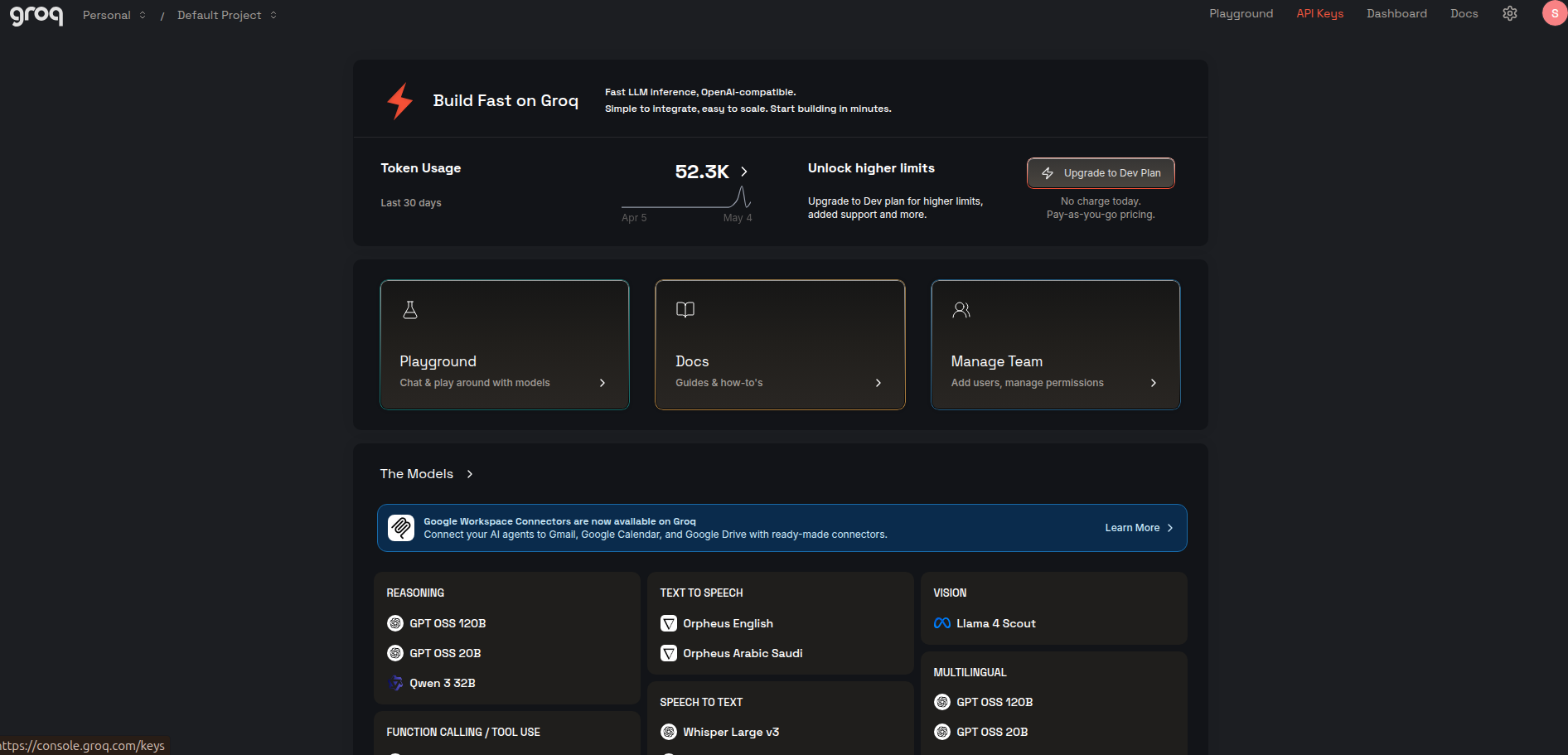
Step 2: Open the developer dashboard and find the API keys or Developer section.

Locate the API key section in the Groq dashboard.
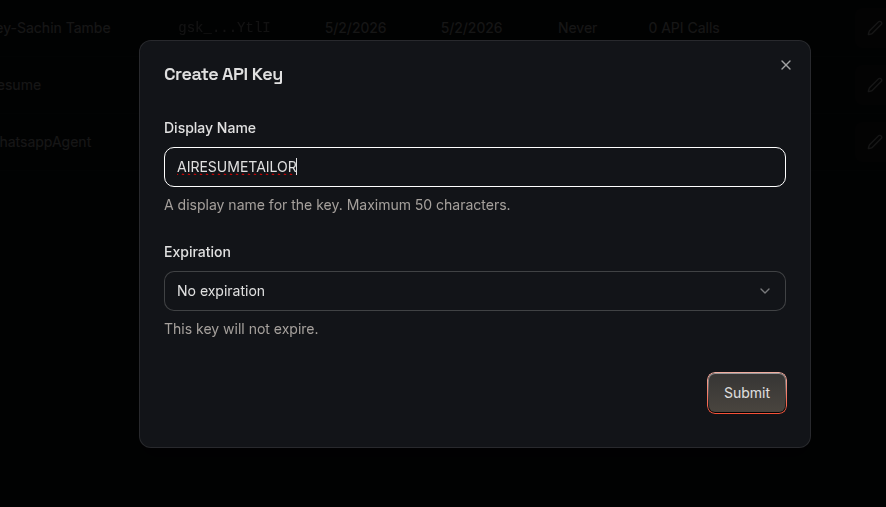
Step 3: Create a new Groq API key and copy it.
Generate a new Groq API key and copy it safely.
Step 4: Open the app Settings page and select Groq as the provider.

Switch the app to Groq in Settings.
Step 5: Paste the key into the API Key field.

Paste the Groq key into the app field.
Step 6: Save the settings to finish the setup.
Save the settings after adding your key.
Step 7: Use the connected key to load models and continue.
The setup is complete and ready to use.